
On iPhone or iPad
- In Mail or Files, open the share options for the PDF and choose SmartDecrypt. Or open SmartDecrypt and tap Select File to Decrypt.
- If no saved pattern matches the file name, enter the password.
- SmartDecrypt saves an unlocked copy named
name_unlocked.pdf. The original stays as it was. - When asked, save the password as a pattern, for example
Statement_*.pdf, so future statements unlock without a prompt.
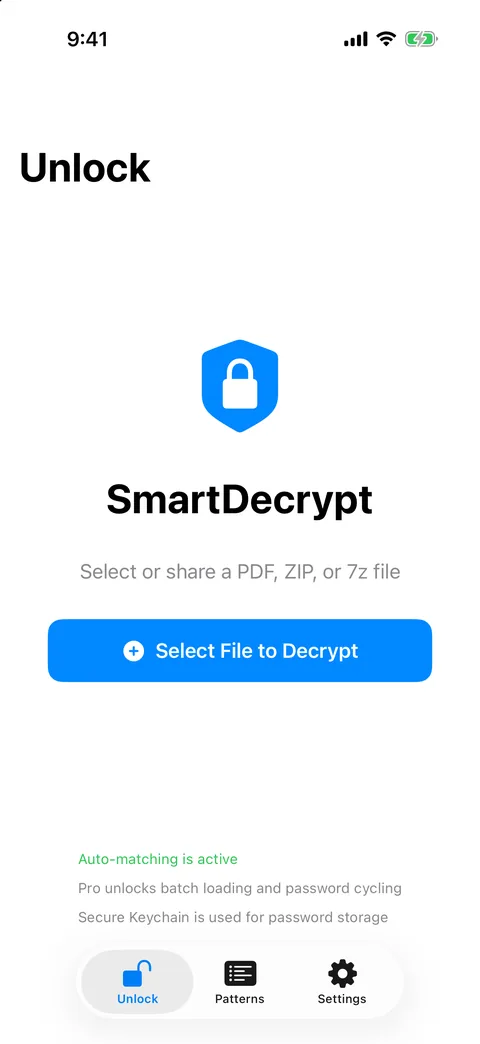
Select or share a PDF, ZIP or 7z file to begin.
On a Mac
- Open SmartDecrypt and drop the PDF into the window, or use the file picker.
- Choose whether unlocked copies go next to the original or into a folder you pick.
- Enter the password if no pattern matches, and save it as a pattern.
On Windows
- Right-click the PDF in File Explorer and choose Unlock with SmartDecrypt (or use Open With).
- Enter the password if needed. The unlocked copy is saved next to the original.
- Add a pattern under Saved Password Patterns so the next file unlocks automatically.
Make the next file unlock automatically
Look at how the sender names the files. Statements named Statement_2026-10.pdf, Statement_2026-11.pdf and so on share the start Statement_ and the ending .pdf, so the pattern Statement_*.pdf covers all of them. If a sender puts a word in the middle, use it: *payslip* matches “October_Payslip.pdf” and “payslip-nov.pdf” alike, because matching ignores case.
If two of your patterns fit one file, SmartDecrypt uses the more specific one: the pattern with more fixed text. You can try this in the pattern matcher.
Good to know
- The unlocked copy has no password. Store it somewhere you trust, or delete it after reading.
- If the password is wrong, nothing is written and the original stays locked.
- PDFs that use certificates instead of passwords haven't been tested and may not open.